Invite New Members To An Account
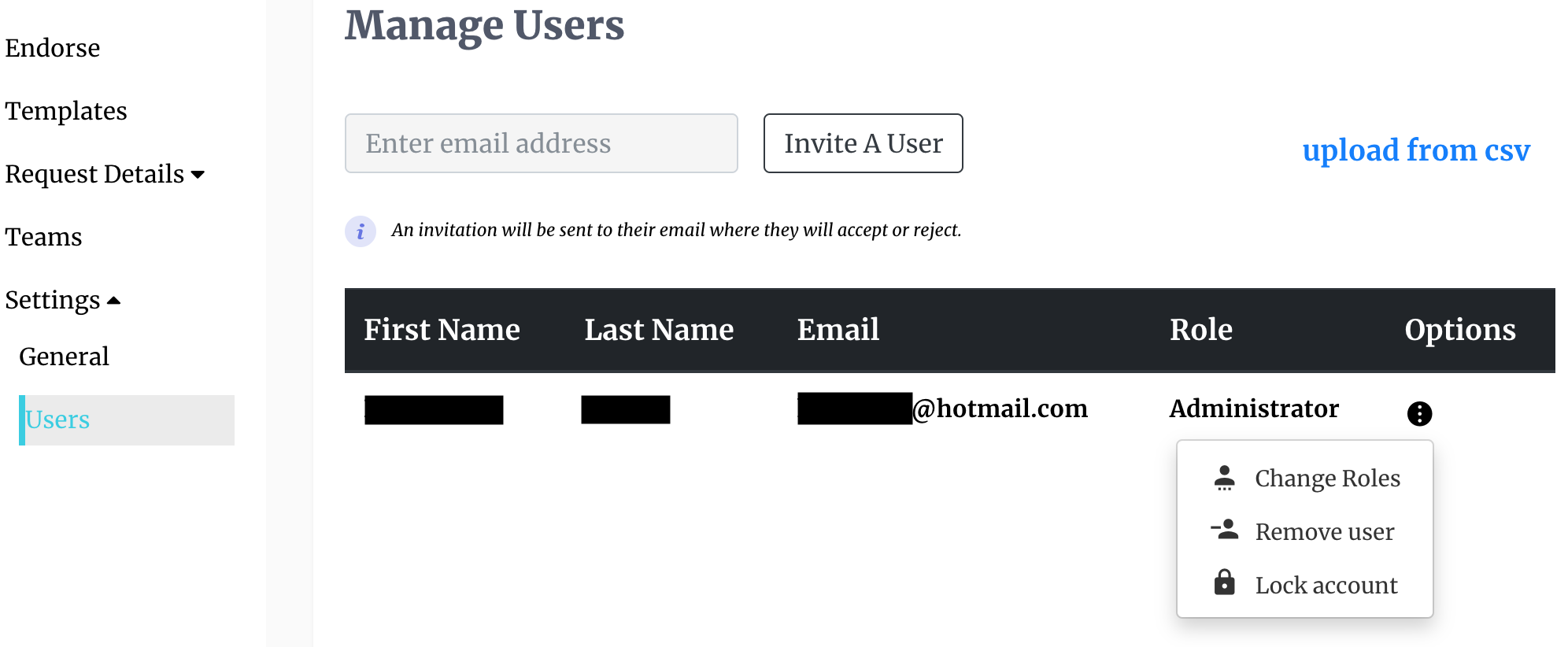
Users with administrative level permissions are able to invite others to use their account, such as an employee or a colleague. This is done by accessing your Obfys account and going to Settings -> Users, then entering the email of the user that you want to invite, and then clicking on the Invite New Users button. This will automatically send an invitation link to the email provided. When the invitee clicks the "Accept Invitation" link in the email, the user will be directed to Obfys' website where they will go through all the steps involved in the sign-up process except that they will not be required to pay a fee. Administrative users must ensure that all the proper permissions are granted to any user they have invited by returning to the user section and selecting the appropriate role in the user options section of the table. It is usually the case that administrators may want to give non-administrative level permissions to those they have invited in order to prohibit unauthorized actions being taken, such as the cancellation of service or the download of private data.
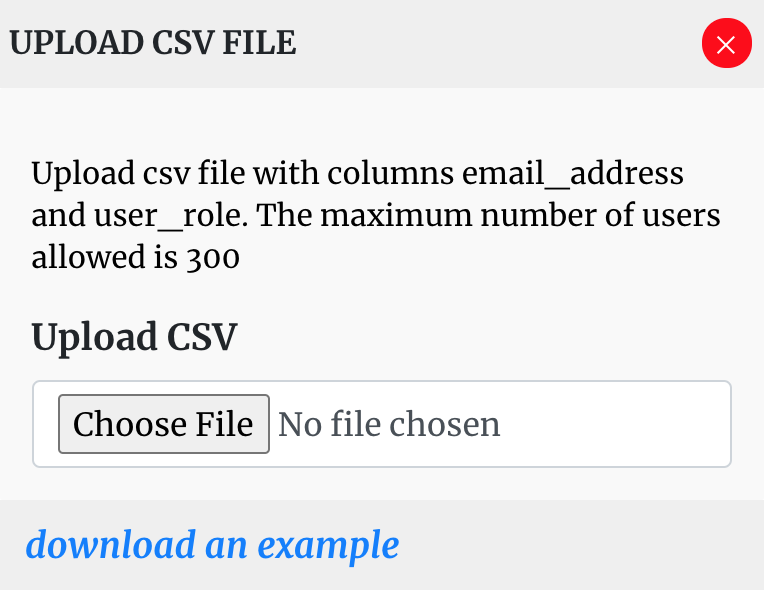
In cases where a fairly large organization wants to take onboard many people at once, we have a bulk invitation workflow that allows the user to upload up to 300 other users through the use of a CSV sheet. To use the bulk invitation service, simply click on the Upload from CSV link and follow the on-screen prompts. You will be required to upload a CSV file with a list of email addresses and roles. The names of the columns in these files must be email addresses and user roles. Please ensure that you have purchased the necessary user seats before you send out invitations.