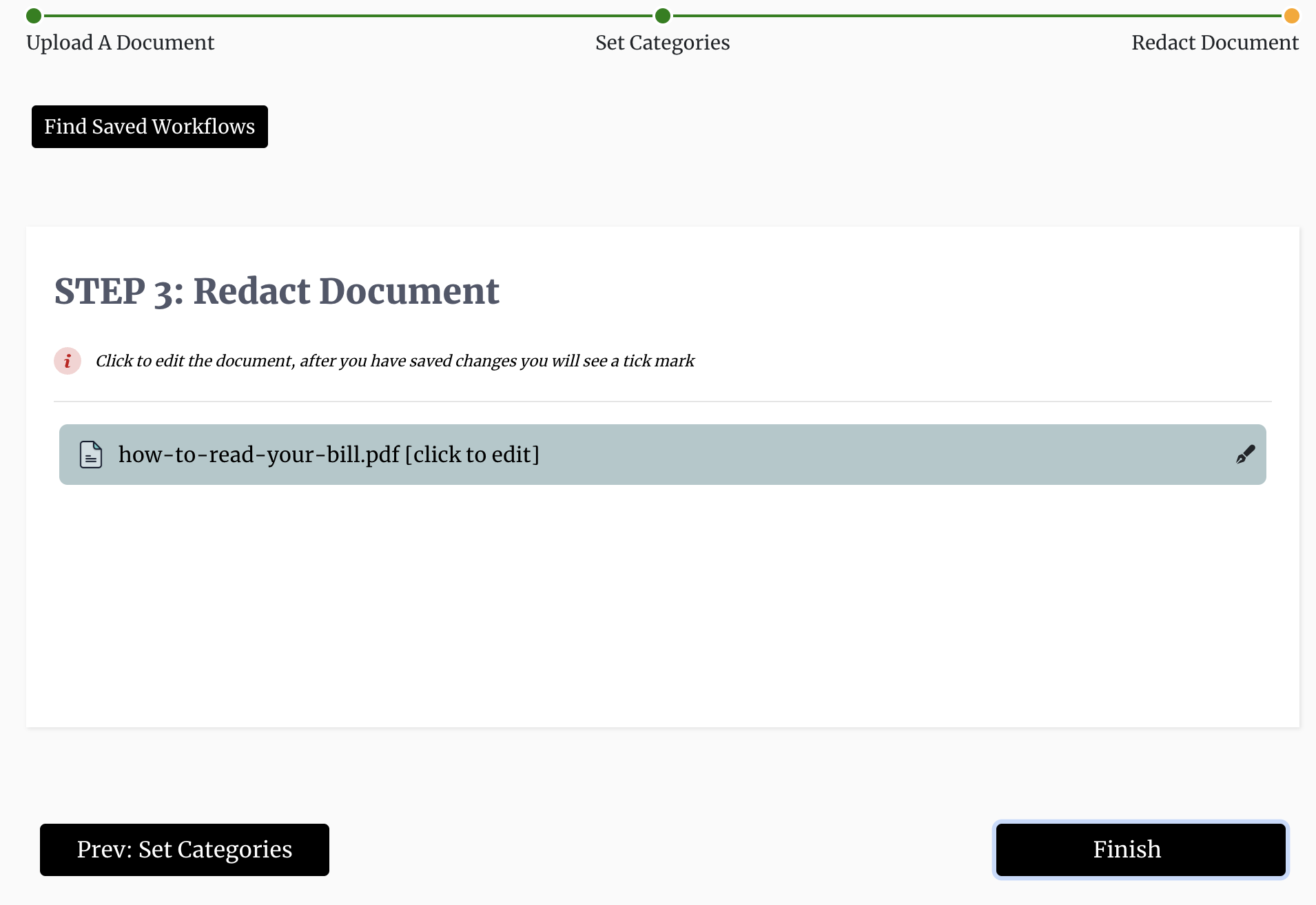
Redacting Your First Document
To redact a document you can use a multi-step workflow that will walk you through the process step by step.
You must first login to the Obfys website and then go to the hub page, then click on "Redact documents". This will load the document redaction workflow which is located on another page. From there, redacting a document is a simple 3-step process:
-
Find the document that you want to redact. It is important to note that you can upload multiple documents and redact each of them later in the workflow.
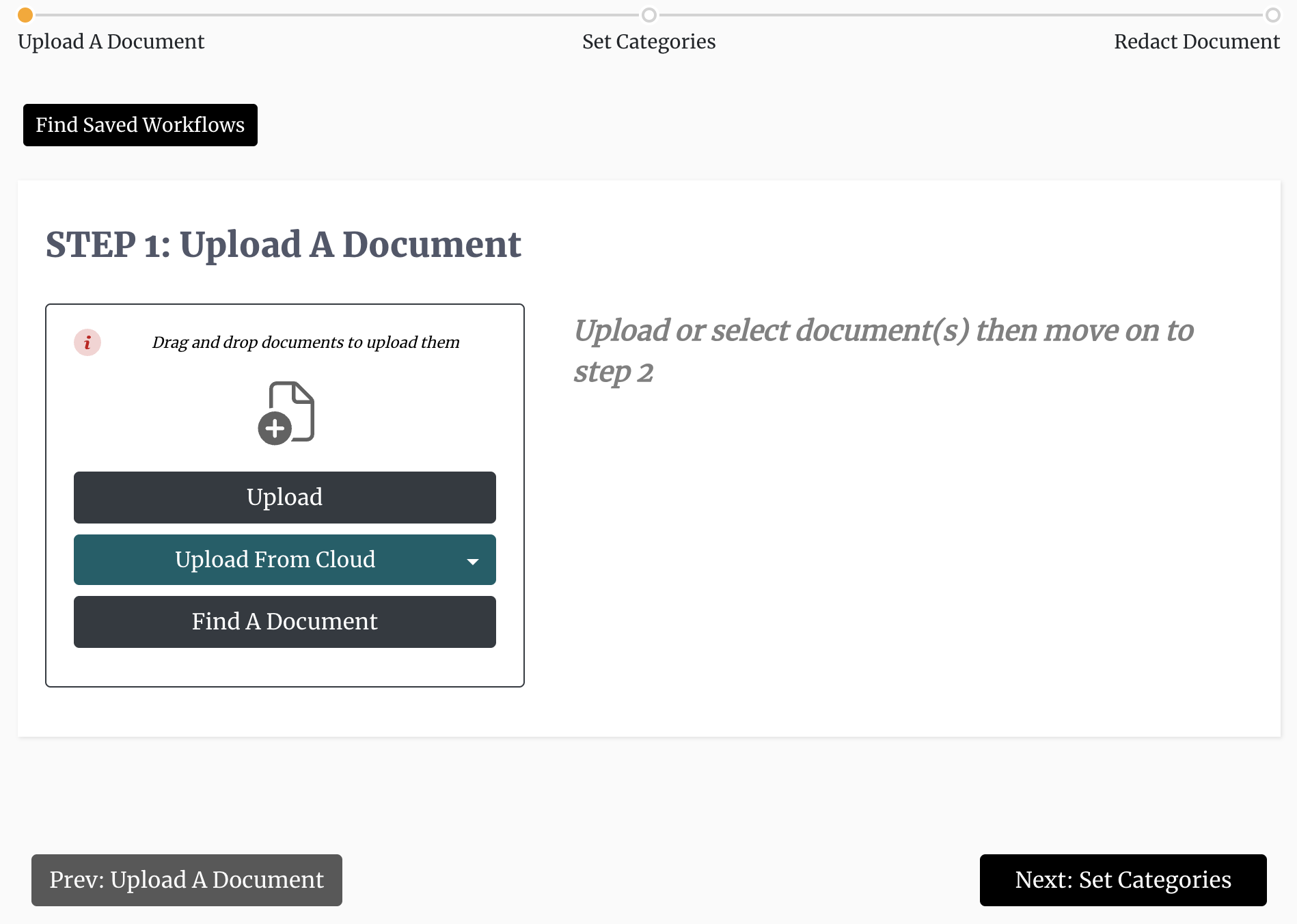 We have a number of alternatives that you can use to get the document you desire. You can choose documents that have been:
- Directly uploaded from your mobile or desktop computer
- Uploaded before but not signed.
- Uploaded to a third-party cloud provider such as Google Drive, OneDrive, Box, or Dropbox (see How To Upload Documents).
-
Optionally select the data categories you would like to redact. There are currently 12 data categories available for selection including but not limited to names, emails, credit cards, addresses, and telephone numbers. When you select any of these items your document will be scanned and the located items automatically highlighted for processing in the next step.
-
Prepare the document for redaction. In this section you select one or more documents that you want to redact, which will launch the Obfys editor. Using the editor you highlight areas of the document that you want to erase using a pen tool, a box tool, metadata tool, or other auto-redation methods (such data category selection). You must then review and save all the changes, and then close the editor. The redacted document should then show up under "Prepared Documents" with several options that allow you to easily take the next steps.