Redact Emails
To redact email, you must first login to your account and then go to the hub and click on the "Redact Email" tab to start the redaction workflow.
You can erase all selected traces of text or metadata from an email in a simple 3-step process:
-
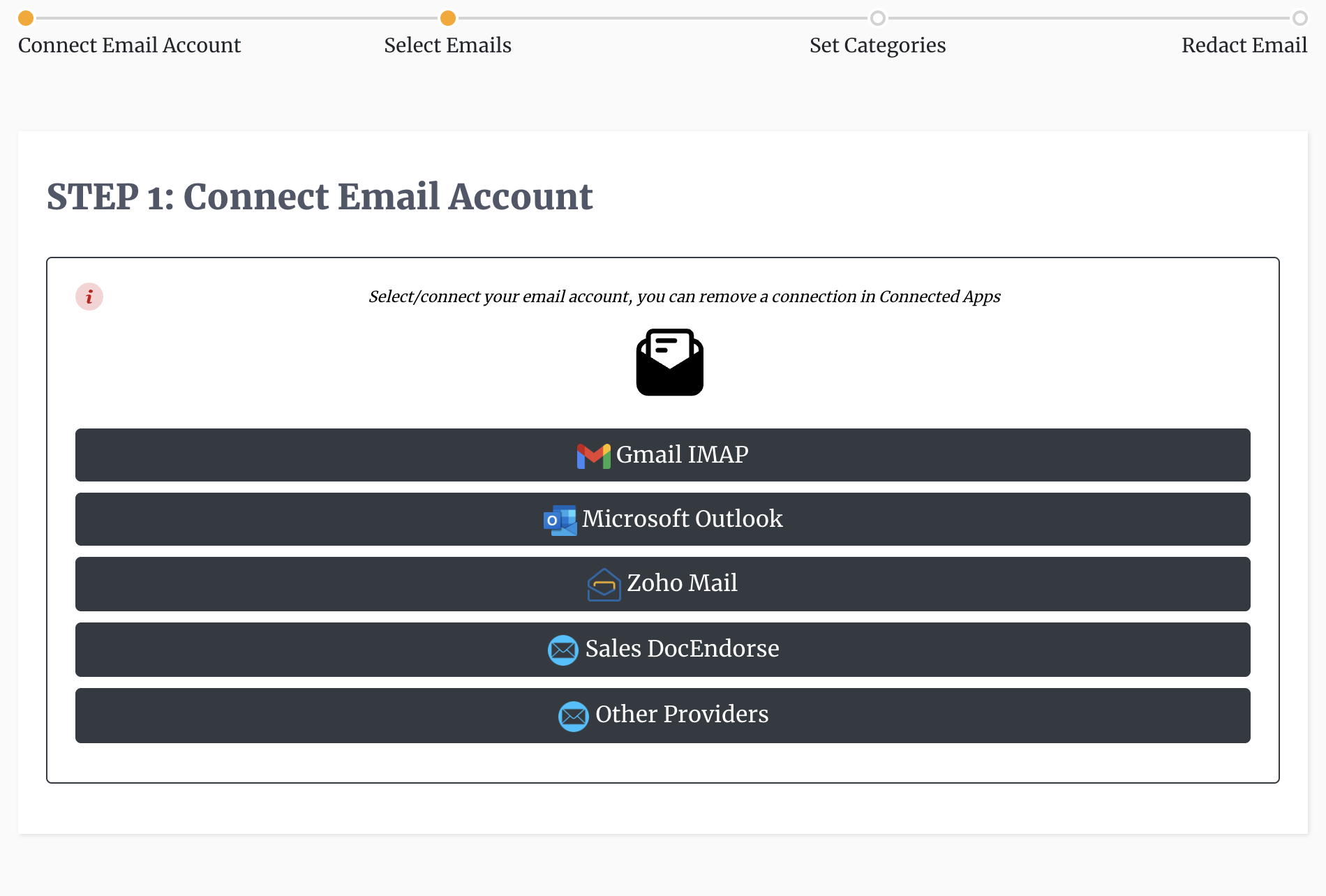
Connect Email Account : You must connect and select an email account. You can connect to Outlook, Hotmail, Gmail, Zoho mail and to other providers. Connection can be done via ouath with Gmail, Microsoft, and Zoho mail, while other connections can be done via IMAP credentials. Ouath connections require you to sign in to your respective email provider who will then grant us limited access to your email. With IMAP access you will need to enter your user name, password, email server (this can found online by searching for imap server for the respective email account), and port number (usually 993).
-
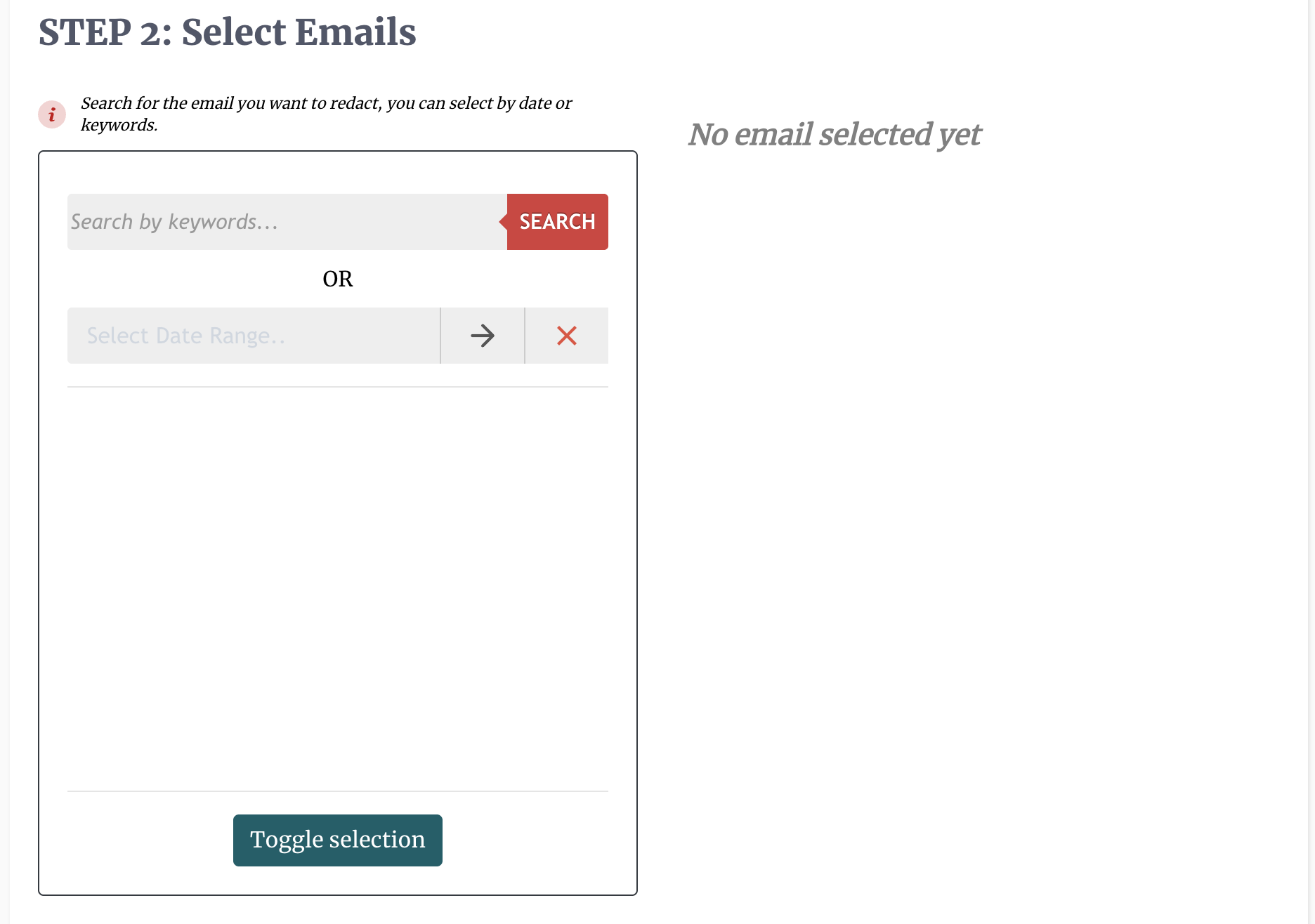
Locate Emails : In this step you must locate the emails that you want to redact and select them. You can search by keywords located in the email body and subject line, or search based on a begin and end date when the email would have arrived in your inbox. From the listed presented you can then select the email you want to redact. All selected emails will then be uploaded to our platform and the body converted to PDF merged with any attachments that may have been present.
-
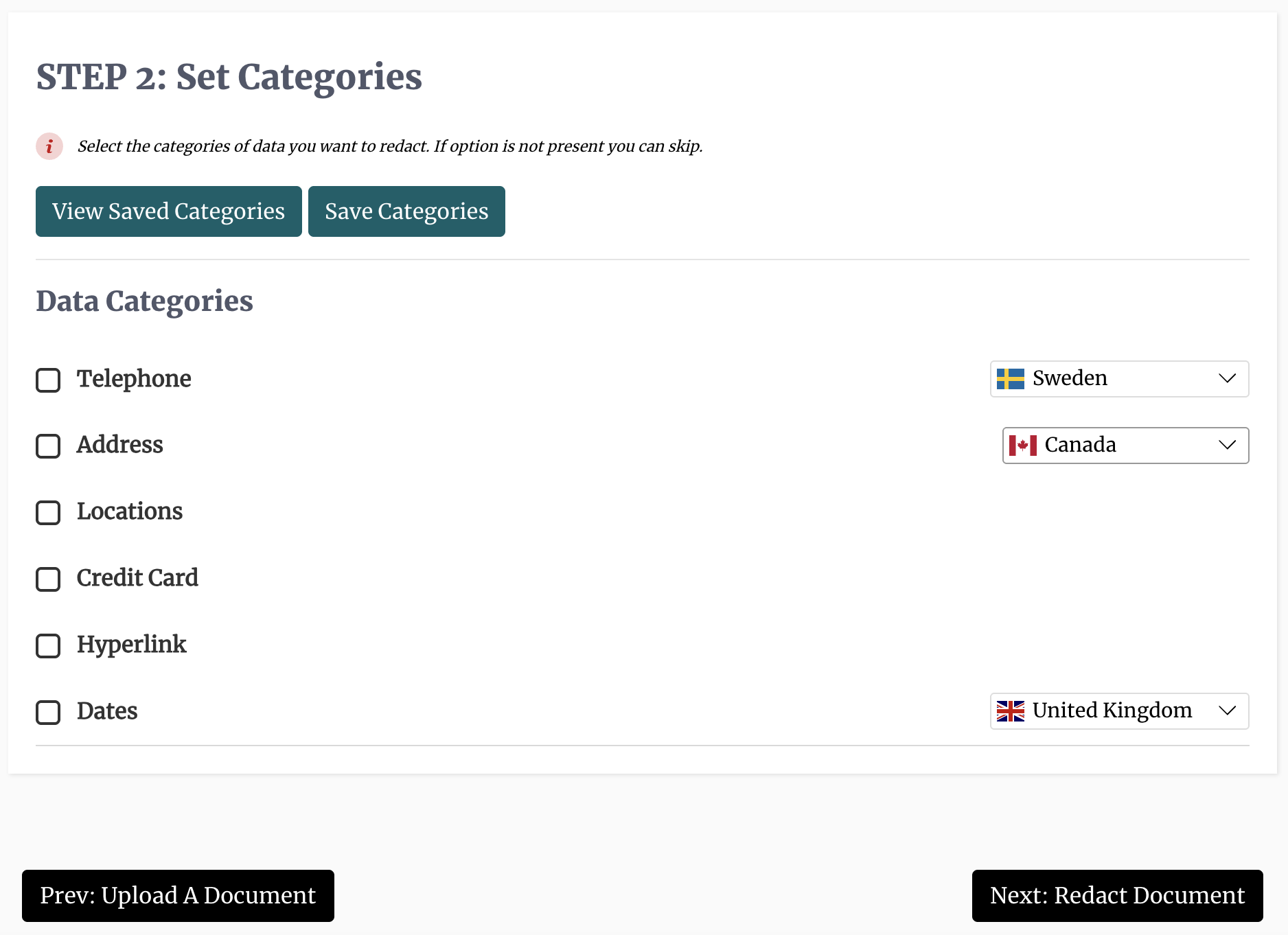
Select Data Categories: This optional step allows you to automatically highlight sensitive information based the type of data e.g. emails, addresses, names, locations etc.
-
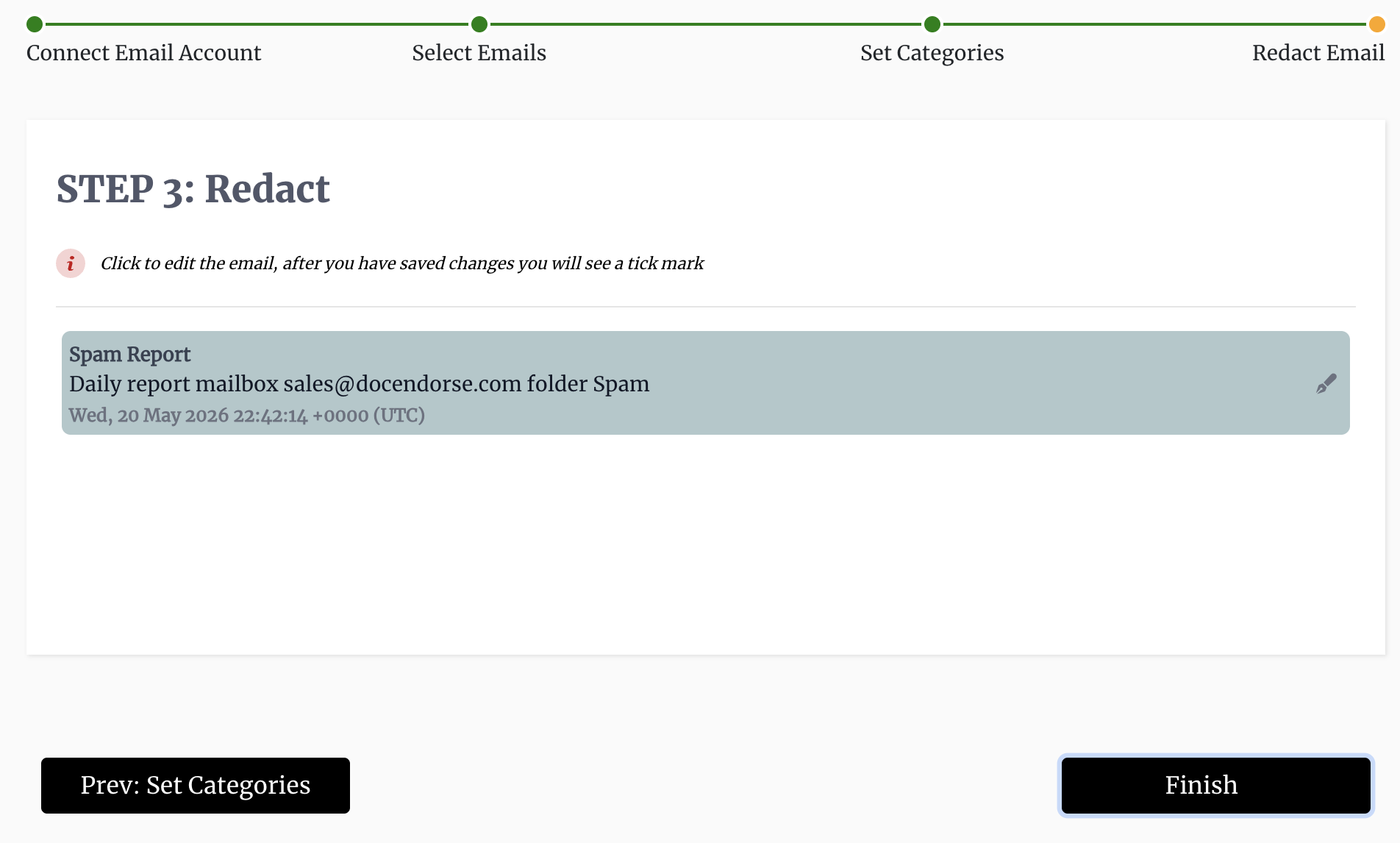
Prepare Document: Once uploaded, you then select the email you want to redact, and it opens up our redaction editor to begin the redaction process. Our redaction editor comes with a number of tools that allow you to preview and redact documents quickly and easily. We have the pen tool for fine-tuned redaction, the box tool to select whole paragraphs or a whole section, the search tool to find specific keywords or phrases, and we have the AI tool that redacts text based on data categories. You can also map a redaction box to a specific text and have that text redacted throughout the document. It is important to note that the black boxes that show what text will be redacted can be resized according to your preference, and that you double-click on each box to bring up its redaction options. If you are interested in redacting the metadata, you simply select the information tool in the taskbar at the top. This will bring up a context menu that allows you to view and redact any metadata in the document.
-
Review Document: Upon exiting the document and clicking confirm changes, our platform will then permanently erase all the areas of the document you highlighted, including the metadata if indicated. The final version of the document will then show up in the list of redacted documents. From here, you can view the file and its metadata to check if everything was done according to your specification. You can also delete the file or share it via email. The file will also show up in your document table, where you can also do further actions if needed. You can also access an audit trail of the items that have been redacted.