Resize, Remove, and Move Object Fields
Single Item Operations
You can place an object field onto the document by engaging the field (by a single click or tap) and drawing it on the page and section that you want to erase. Please Keep in mind that object fields dropped onto a page cannot be dragged to another page. After added the field on the page, you will have several options to re-position the field.
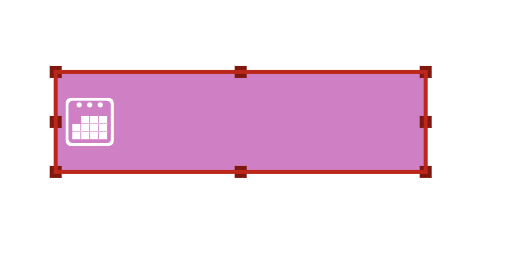
If you want to re-position an object field you simply drag it in the direction that you want to position it. A single tap or click on an object field activates the resize handles. You can position your finger over any of the handles and drag it in the direction that you want to expand or reduce the field.
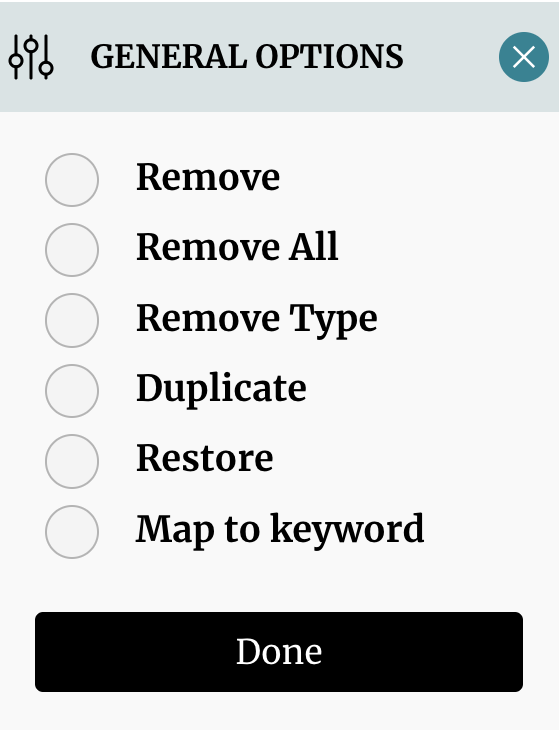
Additional positioning options can be found in the general context menu, which can be retrieved by long pressing for 3 seconds, or right clicking on the object in question. This context menu allows you to, among other things, duplicate the current object field and map this field to a keyword. When you map an object field to a keyword the system will automatically determine the position of the object field in question relative to the keyword you choose, and then replicate the object field and position them at the same relative position to all subsequent keywords.
Operating on Multiple Items
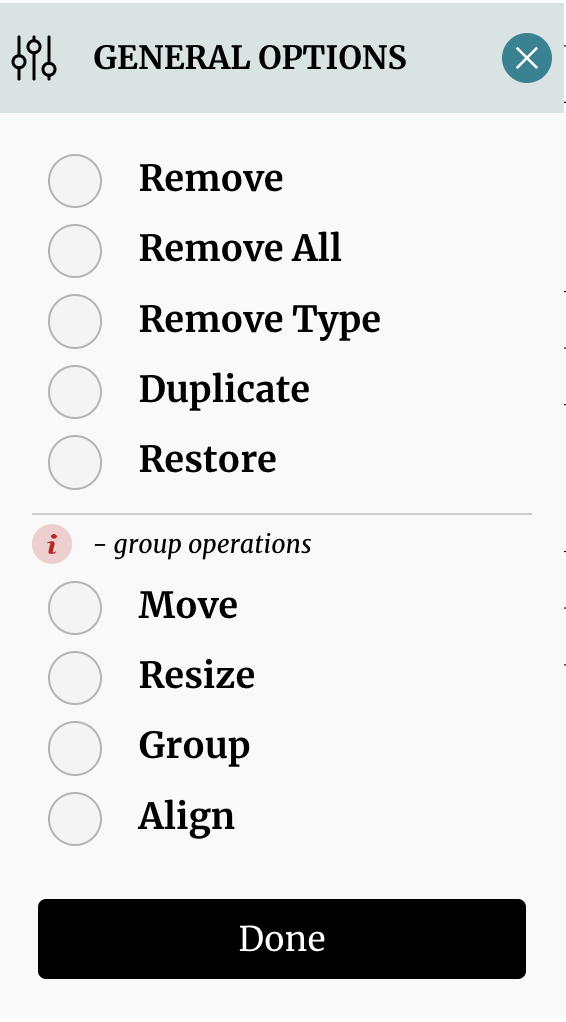
If you want operate on multiple items at once, you can drag a rectangular section (or pinching the case of a mobile phone) over all the items in question. You can then select the appropriate option to apply it to all of the items.
Group Positioning
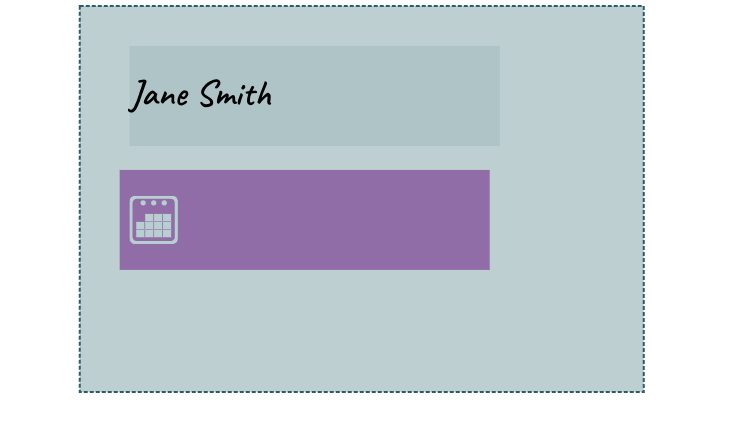
You can group object fields so that they can be manipulated as a single item. This is done by dragging a rectangular section (or pinching the case of a mobile phone) over all the objects that are part of the group, and selecting "group" on the context menu that pops up. With all the items now considered part of a group, the user can now move, align, or resize all items simultaneously. The user can also center and align all the items left or right.